Capture Form Leads in Your CRM With a Webhook
Connect form submissions to Marro without writing code: create a webhook, map name and phone, test repeat enquiries and check who owns each new lead.
By the Marro team8 min read
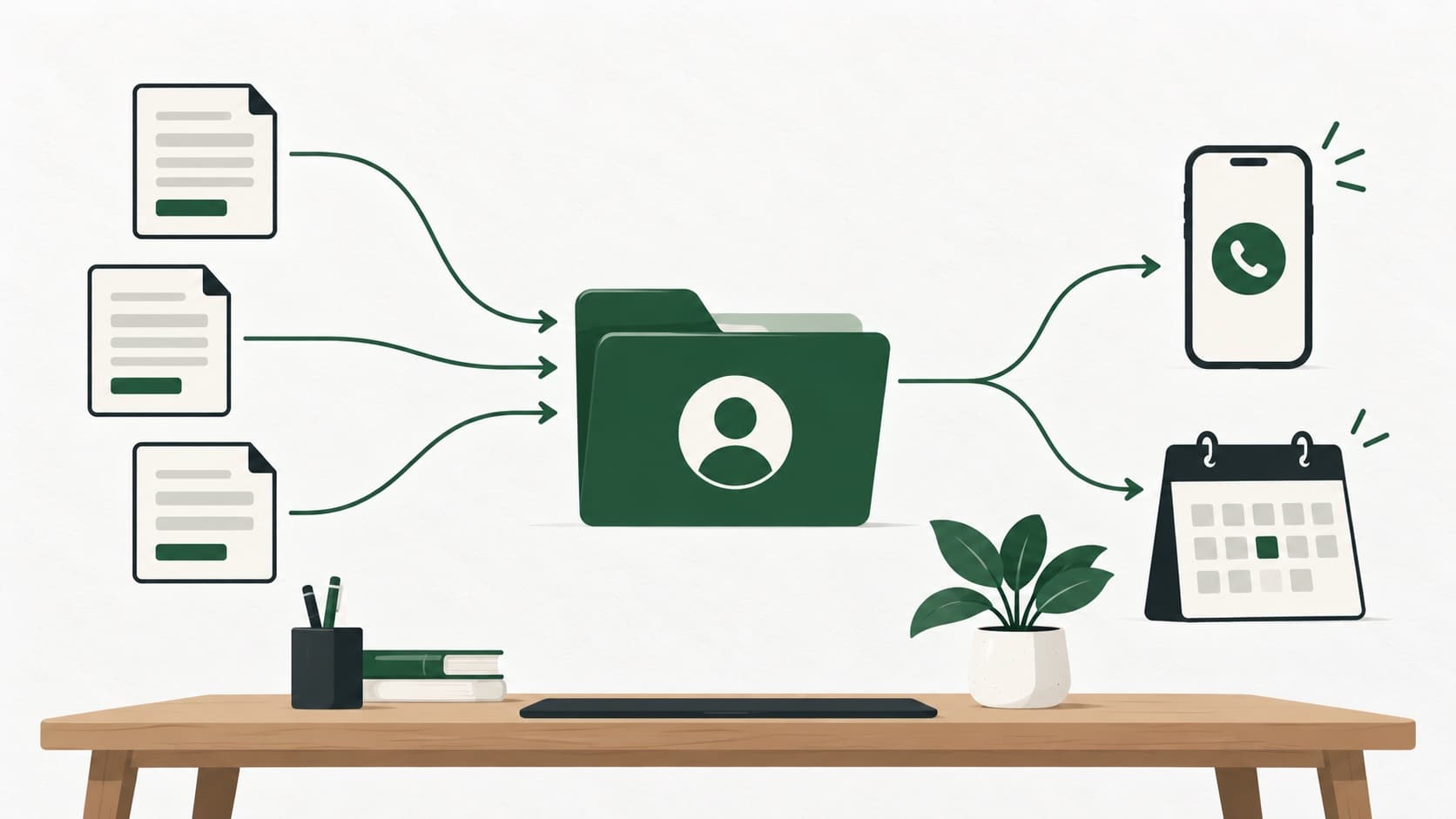
A form webhook sends each submission to a CRM address instead of waiting for someone to copy an email. In Marro, create a webhook, paste its address into a tool that supports it, submit a test and map the fields. Check name, phone, source and assignment before relying on the connection for live enquiries.
What is a webhook for lead capture?
A webhook is a delivery address for form submissions. When someone submits a form, the form tool sends their answers to that address. The CRM then turns those answers into fields on a lead, so the team can respond without retyping them.
For a coaching centre, that could mean an enquiry from a weekend-batch form arriving with the student’s name, phone and course. For a property team, it could carry the project and preferred area. Capture only the details the team needs to answer the enquiry.
Capture only gets the record into the CRM. It does not mean someone has contacted the lead, that the phone is correct, or that the person has agreed to promotional messages. Check those separately.
Which form tools can send leads this way?
Use this method when your form tool can send submissions to a webhook URL and its payload contains the fields Marro needs. Check that option in your own subscription before changing a live form. A tool with an API does not always have a no-code webhook setting.
Elementor documents WebHook as an action after submission. Jotform’s setup guide explains how to add a webhook destination. Typeform’s webhook documentation describes sending a response when a form is submitted. These are delivery methods to test; not every form layout maps automatically.
For a property or education portal, ask its support team whether your account can send leads to a webhook, and request a sample payload. A portal that emails enquiries is not necessarily connected: an email notification and a webhook are different outputs.
How do you create the connection in Marro?
Open Settings → Leads → Webhooks → New webhook and name it after the specific form. Use a separate address for each source you want to monitor, such as Website contact form or Jaipur weekend batch. That makes a broken connection easier to find.
Marro accepts JSON, form posts and query-string submissions, and your form tool already sends one of them. The first sample is for checking and mapping; send another submission after saving the mapping to confirm a lead is created.
- 1Create the webhook in Marro and copy its address.
- 2Add that address to the form tool’s webhook setting, leaving the form’s existing confirmation page in place.
- 3Submit a test with a name and a phone number you control. Return to Marro and check what arrived.
- 4Choose Map fields. Match name, phone, email and the enquiry text, plus any relevant lead fields.
- 5Choose the source and pipeline, save, then submit a second test.
- 6Open the resulting lead and check its owner, source, field values and timeline before enabling any follow-up automation.
Which fields should you map?
Name and phone are required for this Marro capture route. Map the person’s answers, not the labels printed beside the questions: “Phone number” is a label, and the number is the value your counsellor needs.
Keep course, project or service in a specific lead field when your team needs to filter by it. Put free-text questions in the timeline message. Create the relevant lead fields in Settings → Leads and sales → Lead setup → Fields before mapping them.
Typeform responses need particular care because the answers sit inside a response structure rather than a simple flat list. Its example payload shows that structure. Check several completed forms, including ones with optional answers omitted, because one mapped sample does not prove every route through the form works.
| Incoming answer | Marro destination | Check before saving |
|---|---|---|
| Full name, or first and last name | Name | It belongs to the enquirer rather than a parent or referrer |
| Contact number | Phone | The form collects a usable number, including country code where needed |
| Email address | Blank email does not hide a missing phone | |
| Course, project or service | Your lead field | The value is an answer rather than the question’s label |
| Question or requirement | Timeline message | The team can read the original enquiry |
What happens if the person already exists?
Marro matches existing leads by phone or email instead of adding a record for every submission. The capture fills empty fields on an existing record and adds the submission to its timeline. New leads receive an owner through your assignment rules.
That protects information your team already collected, but a later form answer does not overwrite old fields. If a buyer changes from a 2 BHK to a 3 BHK, someone should read the new enquiry and update the requirement.
Test this before launch with a second submission from the same contact. Check that the history is clear and the existing owner has not been replaced. Decide too how your team handles shared family numbers, such as two students enquiring through one parent.
Can Google Ads lead forms use the same approach?
Google Ads supports webhook delivery, but its setup includes a webhook key as well as a URL. Follow Google’s official lead-form integration guide and test the complete delivery before relying on it.
Marro’s current Webhooks setup gives you an address and field mapping; it does not show a separate Google webhook-key setting. Pasting that address is not a verified, complete Google Ads integration. Ask for the supported connection route and confirm a real test arrives with the right fields.
Portals with special authentication or unusual payloads work the same way. If they cannot send a compatible submission directly, the connection may need a separate integration service or technical setup. “No code” holds only once the source-to-lead test passes.
How do you test capture and follow-up together?
Test the full journey from submitting the form to a named person seeing the enquiry. A success notice in the form builder only proves the form accepted a submission, not that the CRM created a lead or that a user will call it.
Marro shows submission and capture counts, and the latest problem when capture fails. A sample can arrive before mapping is saved, so those counts need not match. Check the lead timeline; a received sample is not always a new lead.
Once capture works, add the appropriate follow-up process. If you use an AI first caller, check calling setup and permissions separately. Keep test records away from live automatic calls while you map fields.
- Submit a new contact and verify name, phone, source, pipeline and owner.
- Submit the same contact again and inspect the existing lead’s history.
- Try a response with optional fields left blank.
- Test each conditional route through a form, especially where the questions change.
- Check who receives the enquiry when the usual owner is unavailable.
What should you check after changing a form?
Repeat the capture test whenever you change questions, conditional sections or the form tool. A saved mapping describes the payload you tested, not every later version of the form.
For example, a coaching form might ask everyone for a name and phone, then show different course questions. Test one submission for each branch and compare the values in Marro. If an answer is arriving under a different incoming field, fix the mapping or the form before the revised version receives live enquiries.
Keep a simple source register: form name, person responsible for it, Marro webhook name and last successful test date. Give the person editing the website a way to tell the CRM owner before changing fields, so the website does not look correct while the team receives incomplete records.
After a busy campaign starts, reconcile a small sample of form submissions with lead timelines. Check the person, source, assigned owner and full enquiry text, not just the total received. Repeat submissions can update an existing lead, and unmapped samples can arrive without creating one, so counts alone cannot explain the gap.
If the form is retired, pause its webhook as part of the same change. If it returns for another intake or project, review its pipeline and assignment rules before switching it back on. An old connection can still send a new enquiry to the wrong team.
What should you do when a connection stops working?
Start with the last problem shown on the webhook and a fresh sample. If the form questions were renamed or reordered, compare the incoming fields with the saved mapping. If the address was replaced, update the sender as well.
Treat the webhook address as private. It lets a sender submit leads, so keep it out of public guides, screenshots and shared documents. In Marro, Replace address invalidates the old one immediately. Take submissions pauses that source.
Keep the form tool’s own submission record to reconcile missed enquiries, within your retention process. If you need to bring older records across, use a separate Excel-to-CRM migration; adding a webhook does not itself import the past. The Marro webhook guide has the current setup steps.