Excel to CRM: How to Move Your Leads Without Losing Any
Move leads from Excel or Google Sheets to a CRM in a day: fix phone numbers, merge duplicates, map columns, test 20 rows, then switch the whole team over.
By the Marro team9 min read
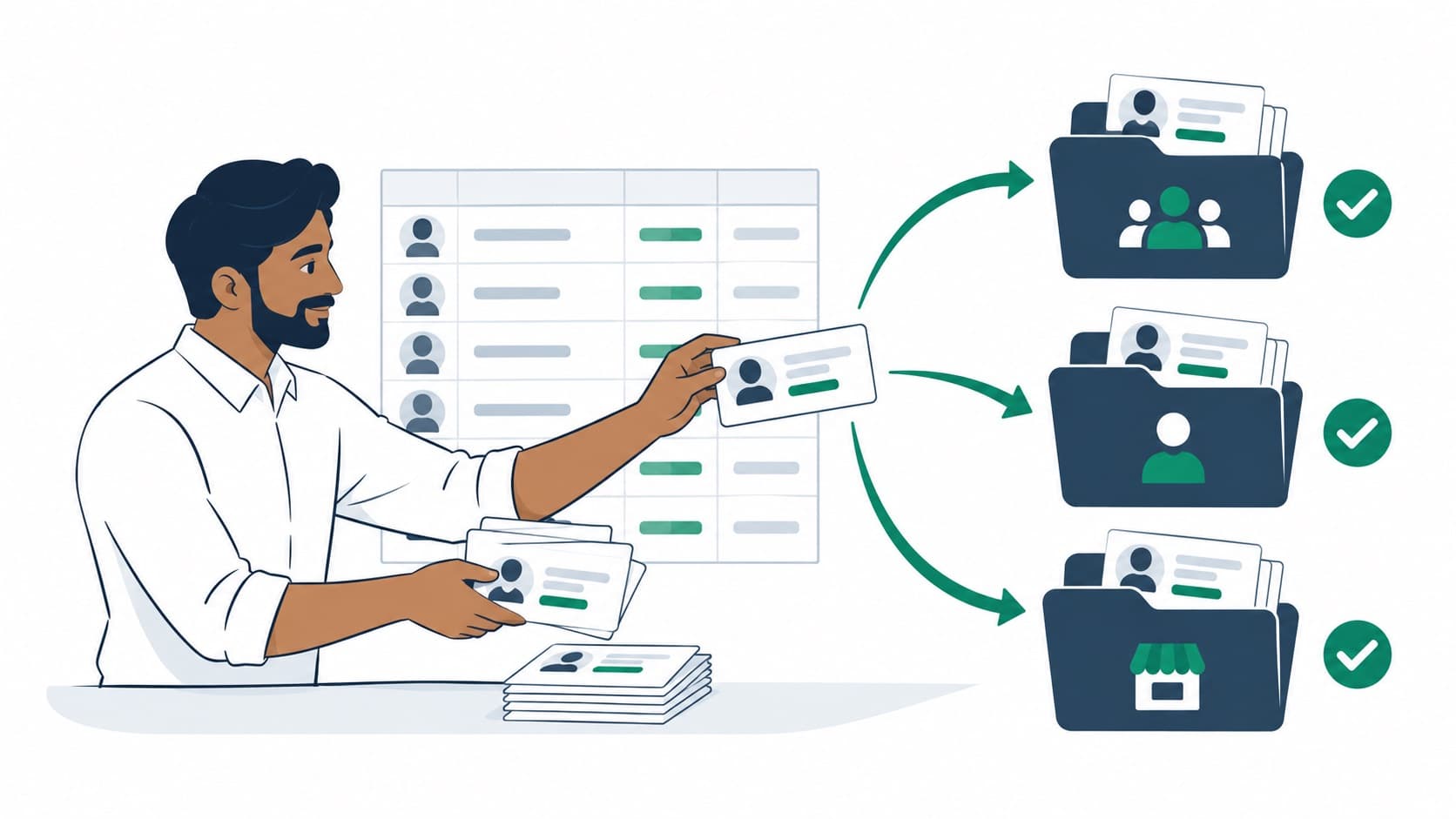
To move from Excel to a CRM, freeze the sheet, keep a backup, clean phone numbers to one format, remove duplicates and map each column to a CRM field. Export a UTF-8 CSV, import 20 test rows, check them, then import the rest and switch the whole team over on one agreed day. Most small teams finish in a day.
When is it time to move from Excel to a CRM?
Move when more than one person works the same leads, or when follow-ups start slipping through. A sheet is a fine list but a poor system for knowing who called whom, what was said and what happens next.
Take Pune Pathways, a made-up admissions consultancy that gets 60 enquiries a day in May. Four counsellors share one Google Sheet. By the second week, two of them have called the same parent twice, a third has her own copy ‘to avoid confusion’, and nobody can say which of last week’s 400 leads haven’t been called back.
- More than two people edit the sheet, or keep private copies of it.
- Leads come from ads, forms and WhatsApp, and someone copies them in by hand.
- Follow-up dates live in a column nobody filters every morning.
- You can’t answer ‘which source brought the leads that converted?’ without an afternoon of work.
- A counsellor leaves and their leads’ history leaves with them.
What should you do before you import anything?
Freeze the sheet, make a backup and decide what one row means. Ten minutes of preparation saves a day of cleaning up a bad import.
If counsellors keep editing the sheet while you clean a copy, you’ll import Monday’s data and lose Tuesday’s calls. Pick a cut-off time, say Friday 6 pm IST, make the sheet view-only, and do the move over the weekend.
Lead data is personal data under India’s Digital Personal Data Protection Act, 2023, so treat the copies with care: keep the backup in one restricted folder and delete the working copies once the move is checked.
- Save an untouched copy of every sheet and note each one’s row count.
- Merge all the active sheets into one working file with the same columns.
- Decide what a row is: one person, not one enquiry. A parent asking about two courses is one lead with two notes.
- Drop columns nobody uses, and anything you shouldn’t be keeping, such as Aadhaar numbers in a lead list.
- Agree the cut-off time and tell the team when the CRM goes live.
How do you clean phone numbers and duplicates in Excel?
Put every phone number in one format, then find the duplicates by phone before you import. Phone matches leads, so a dirty phone column causes nearly every import problem.
Excel has two classic traps. It turns long numbers into 9.88E+09, and it strips the leading zero from 09876501234. Format the phone column as Text before you paste or open anything, and check a few rows after every step.
- 1Format the phone column as Text so Excel stops rounding numbers.
- 2Strip spaces, dashes and brackets: =SUBSTITUTE(SUBSTITUTE(SUBSTITUTE(A2," ",""),"-",""),"(","") and fill down.
- 3Keep the last 10 digits for Indian mobiles: =RIGHT(B2,10). Leave international numbers with their country code as they are.
- 4Flag duplicates with =COUNTIF(C:C,C2)>1, sort by phone and look at each pair.
- 5Merge true duplicates into one row by hand, keeping the latest status and combining the notes.
- 6Where a family shares a number, keep one lead and put the second number in an alternate phone column.
- 7Fix or remove placeholder numbers like 9999999999 and emails like na@na.com.
How do you map spreadsheet columns to CRM fields?
Match each column you’re keeping to one CRM field, and create the fields you need before you import. A column with no clear home goes into notes.
In Marro, a row needs a name and a phone; everything else is optional. The import matches common column names on its own and lets you change any mapping. It reads dates like 31/12/2025, dropdown values by their label, Yes or No for checkboxes, and the owner and source by name. A column mapped to ‘Note’ is added to each lead’s timeline, and ‘Date created’ keeps the original enquiry date, so last May’s leads don’t all look like they arrived today.
Your industry decides the fields. An education consultancy will want course, intake and country fields; a real estate team will want location, budget and configuration. Set those up in the CRM first, or the import has nowhere to put them.
| Column in your sheet | CRM field | What to check |
|---|---|---|
| Student name / Client name | Name | No blanks; ‘Mr’ and ‘Dr’ are fine to keep |
| Mobile / WhatsApp no. | Phone | Text format, 10 digits or with country code |
| Email ID | Spelling, and junk like na@na.com | |
| Counsellor / Agent | Owner | Names match your team’s user accounts exactly |
| Source | Lead source | Same spelling every time: ‘Instagram’, not ‘insta’ and ‘IG’ |
| Course / Requirement | A custom field | Create it first; use a dropdown if values repeat |
| Remarks / Last call notes | Note | Goes to the timeline, so nothing is lost |
| Date of enquiry | Date created | One date format through the whole column |
What happens to the status column from your sheet?
Turn your old statuses into the CRM’s stages before or right after the import. Sheets collect statuses like ‘hot’, ‘call later’, ‘RNR’ and ‘interested??’ that mean different things to different people.
Write a short translation first: ‘hot’ and ‘interested’ become Qualified, ‘RNR’ becomes Contacted with a follow-up, ‘not interested’ becomes Lost. In Marro, imported leads start in the pipeline’s first stage. Keep the old status in a custom field during import, then filter by it and move each group to its stage in bulk. It takes a few minutes.
Follow-up dates deserve the same care. Before you switch, make sure every live lead has a next action on a date in the CRM, starting with anyone due this week. A migrated lead with no next step gets forgotten in a new system too. Our lead follow-up guide has a routine for setting them.
How do you import a CSV into a CRM step by step?
Export a CSV, import a small test batch, check it, then import the rest. The test batch catches nearly every mapping mistake while it’s cheap to fix.
Save from Excel as ‘CSV UTF-8’ so Hindi, Tamil or Marathi names and the ₹ sign survive. From Google Sheets, use File, then Download, then Comma-separated values. In Marro, one file can hold up to 10,000 rows, and the preview shows which rows match a lead you already have before anything is written.
- 1Create your stages, custom fields and team user accounts in the CRM first.
- 2Save the cleaned sheet as a UTF-8 CSV.
- 3Pick 20 rows that include an existing lead, a row with blanks, one with a non-Indian number and a normal new lead.
- 4Import those 20, choosing the lead source and pipeline, and decide whether rows whose phone already exists should update that lead or be skipped.
- 5Open five of the imported leads and check name, phone, owner, custom fields, notes and created date.
- 6Fix the mapping or the sheet, then import the full file.
- 7Spread unassigned rows across the team in turn, or assign them in bulk afterwards.
How do you check the import worked?
Add up the import result and compare it with your sheet: new leads plus updated plus skipped plus errors should equal the rows you imported. If it doesn’t, find the gap before anyone starts work.
Say Pune Pathways imports 4,812 rows: 4,390 new, 312 updated, 96 skipped and 14 errors. That’s 4,812, so nothing went missing. The 14 errors are usually short or blank phone numbers; fix them in the sheet and import just those rows. The 96 skipped are existing leads you chose not to overwrite.
Then check people, not totals. Ask each counsellor to open their list and confirm their top 10 leads look right. In Marro, a row whose phone is new but whose email already belongs to a lead is added and flagged as a likely duplicate, so review those pairs and merge the ones that really are the same person.
How do you switch the team over without running two systems?
Pick one go-live day, make the sheet read-only and run the next morning’s meeting from the CRM. Two live systems for ‘just a few weeks’ create fresh duplicates every day.
Connect your live sources at the same time: lead ads, website forms and WhatsApp, so new enquiries land in the CRM and nobody needs the sheet for anything. If your team still runs WhatsApp from one shared phone, read WhatsApp Business app vs API before you decide how to connect it.
For the first two weeks, start each day with three lists: new leads with no owner, follow-ups due today, and overdue follow-ups. Once those stay short, add automations or let AI agents plan each lead’s next step. Marro’s free trial runs 14 days with every module and no card, enough to do the whole move with real data; plans are on the pricing page.
What mistakes should you avoid when moving to a CRM?
Most failed moves come from the same few shortcuts. Avoid these and the import is easy.
- Importing straight from the live sheet while people are still editing it.
- Skipping the 20-row test and discovering on Monday that every owner is blank.
- Letting Excel turn phone numbers into 9.88E+09 or drop the leading zero.
- Importing 30 old columns ‘just in case’ and burying the five that matter.
- Leaving every lead in the first stage because the old statuses were never translated.
- Deleting the backup before each counsellor has checked their leads.
- Keeping the sheet open ‘for reference’, which slowly turns back into the real system.